

Help
Send Brantial alerts to Microsoft Teams
Post Brantial reports and alerts to a Teams channel with a workflow. Set it up in about five minutes, choose what to receive and fix common errors.
Updated
Brantial can post your project’s alerts and reports to a Microsoft Teams channel: the Monday report summary, site audit alerts, big visibility changes, new competitors, finished page rewrites and AI crawler access changes. It works through a Teams workflow, so no Microsoft app approval is needed. Setup takes about five minutes.
Before you start
- Only the project owner can connect Teams.
- You need to be able to add workflows in the channel. If the Workflows option is missing, your Teams administrator may have turned it off.
- The workflow template does not need a premium Power Automate licence.
Create the workflow in Teams
- In Teams, find the channel in your team list, open the ••• menu next to its name and choose Workflows.
- Pick the Send webhook alerts to a channel template. If you do not see it, type
webhookin the search box. - Give the workflow a name, for example
Brantial, and continue. - Check that the right Team and Channel are selected, then click Add workflow (in some versions, Save).
- Teams shows the workflow’s address. Click Copy. It starts with
https://and ends inlogic.azure.comorapi.powerplatform.com.
If you closed the window before copying, open Workflows from the Teams app bar, open the workflow and copy the address from its details.
Connect it in Brantial
- In Brantial, open your project, go to Settings and open the Notifications tab.
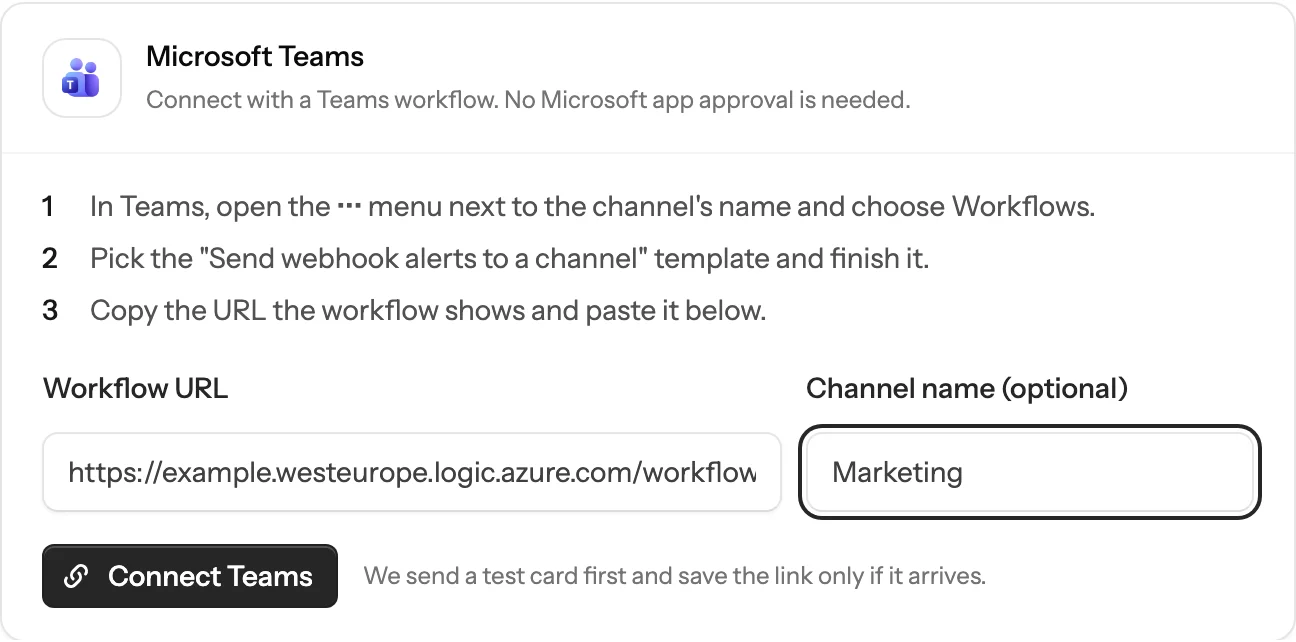
- In the Microsoft Teams card, paste the address into Workflow URL.
- Optionally, type the channel’s name. Brantial uses it to label this connection.
- Click Connect Teams. Brantial sends a test card first and saves the connection only if Teams accepts it.
Choose what to receive
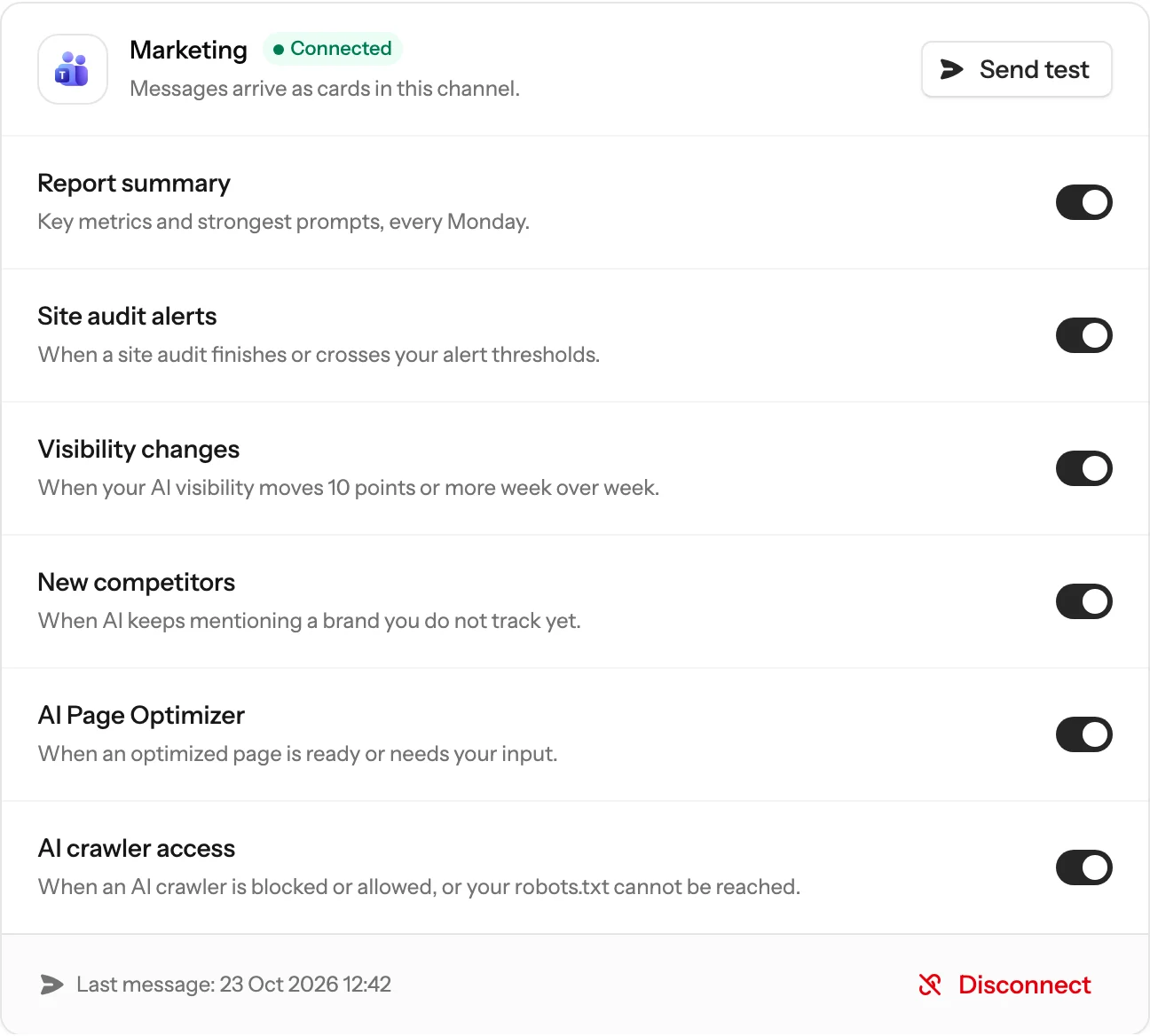
Once connected, the card lists each kind of message with its own switch. Turn off the ones you do not want; changes save straight away. Send test posts another test card whenever you want to check the channel.
Troubleshooting
“This is not a Teams workflow URL”
Brantial accepts only addresses from Teams workflows. Copy the address from the Send webhook alerts to a channel workflow, not the channel’s link or a link to a message.
Older Incoming Webhook connector addresses, which contain webhook.office.com, are refused: Microsoft has retired Office 365 connectors. Create a workflow instead.
Brantial says connected, but no card appears
Teams accepted the card, but the workflow could not post it. The most common reason is a private channel: by default the workflow posts as the Flow bot, and the bot cannot post in private channels.
- Open Workflows in Teams, open the workflow and choose Edit.
- Open the Post card in a chat or channel step and change Post as from Flow bot to User.
- Save, then click Send test in Brantial.
The workflow’s run history in Teams shows each run and why one failed.
“Teams refused this URL”
The workflow was turned off or deleted. Turn it back on in Workflows, or create a new one and connect again with its address.
“Teams did not accept the test card”
Teams was busy or briefly unavailable. Wait a moment and click Connect Teams again.
“The Teams workflow no longer accepts messages”
The workflow stopped working after it was connected. This often happens when the person who created it leaves the organisation, because a workflow belongs to its creator. Create a new workflow and connect again. To avoid this, add a colleague as a co-owner of the workflow.
“The last message could not be delivered”
One message did not get through. If Send test works, the next message will go through as usual. If it does not, check the workflow’s run history in Teams.
Disconnect
Click Disconnect on the Teams card. Brantial stops posting to the channel. To remove the workflow too, open Workflows in Teams and delete it.
What is sent
- Cards with your project’s name, the figures behind each alert and a link to the right page in Brantial.
- Nothing is read from Teams. The workflow only receives what Brantial sends to it.