

Help
Connect AI crawler logs to Brantial
See which AI crawlers read your site. Pick the method that fits your site, set it up in about ten minutes and test the connection from Brantial.
Updated
Brantial shows which AI crawlers read your site, which pages they read and where they hit errors. To do that, a short piece of code on your site reports each AI crawler request to Brantial. This guide helps you pick the right method for your site, set it up and check that it works.
Before you start
- In Brantial, open your project and go to AI Traffic.
- In the AI crawler visits card, click Start setup.
- Choose your platform. Brantial shows your own code with your project’s key already in it. Keep this page open; you will copy the code from there.
If someone else manages your website, use Email it in the same card. It sends them the code and these instructions.
Which method fits your site?
Not technical? You do not have to do this yourself. Find your site in the table below, then click Email it in Brantial. It sends the right code and a link to this guide to whoever runs your website.
| Your site | Method | Time | Who can do it |
|---|---|---|---|
| Any site whose domain is on Cloudflare, including Wix, Shopify, ikas, IdeaSoft, T-Soft and ASP.NET sites | Cloudflare Worker (recommended) | About 10 minutes | Anyone with access to the Cloudflare account |
| WordPress, not on Cloudflare | Must-use plugin | About 5 minutes | Someone with file access to the hosting |
| Next.js on Vercel | Middleware | About 10 minutes | A developer |
| Windows server with IIS / ASP.NET | Global.asax | About 15 minutes | A developer |
| Wix, Shopify, Webflow, Squarespace, ikas, IdeaSoft or T-Soft, not on Cloudflare | Put the domain behind Cloudflare first | 30 minutes plus DNS time | Whoever manages the domain |
| Any other server or a log tool | Send the visits as JSON | Depends on the setup | A developer |
Not sure whether your domain is on Cloudflare? Look up your domain’s nameservers, for example with a WHOIS search. If they end in ns.cloudflare.com, it is.
The Cloudflare Worker is the most complete method: it sees every request, including pages served from a cache, and needs no change on your server.
Cloudflare
- In Brantial, choose Cloudflare and click Copy.
- In the Cloudflare dashboard, open Workers & Pages, click Create application, then Start with Hello World!
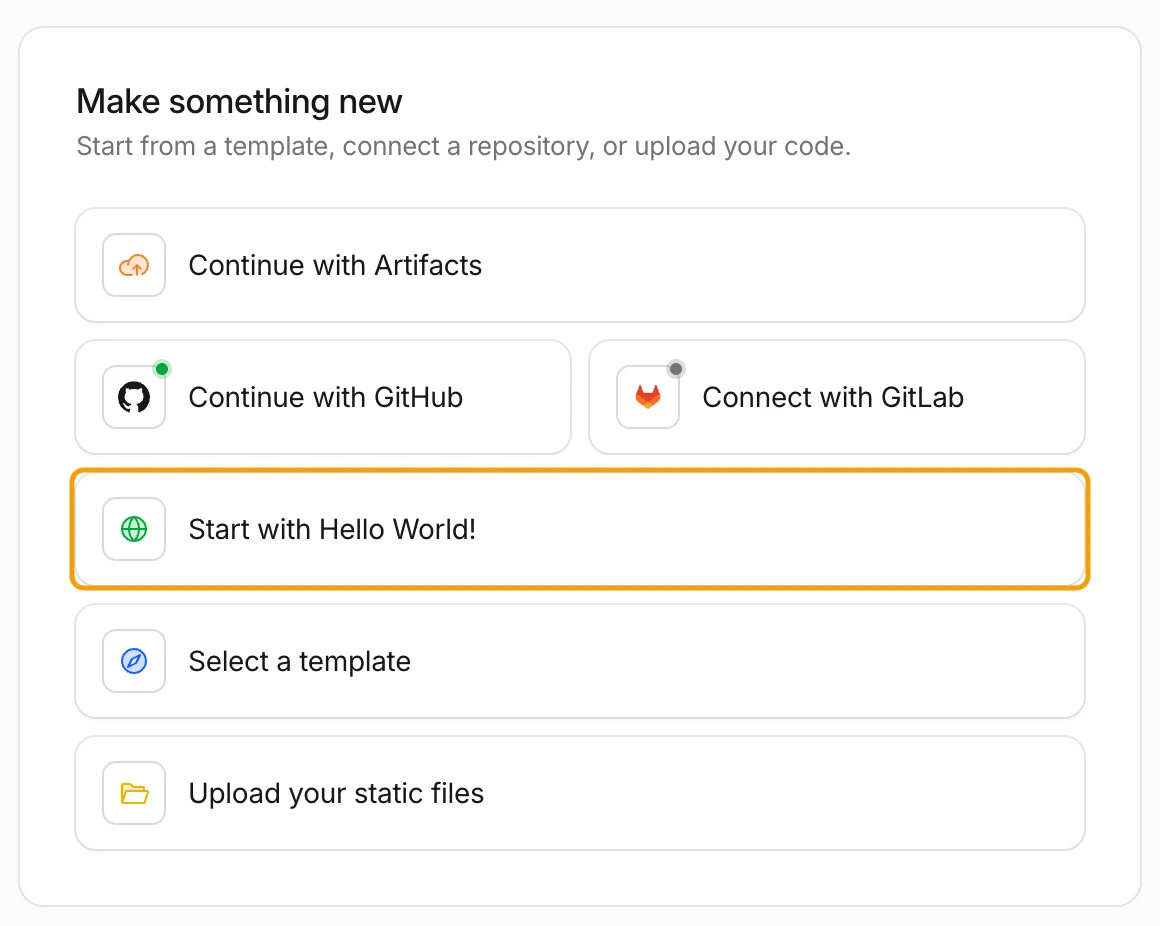
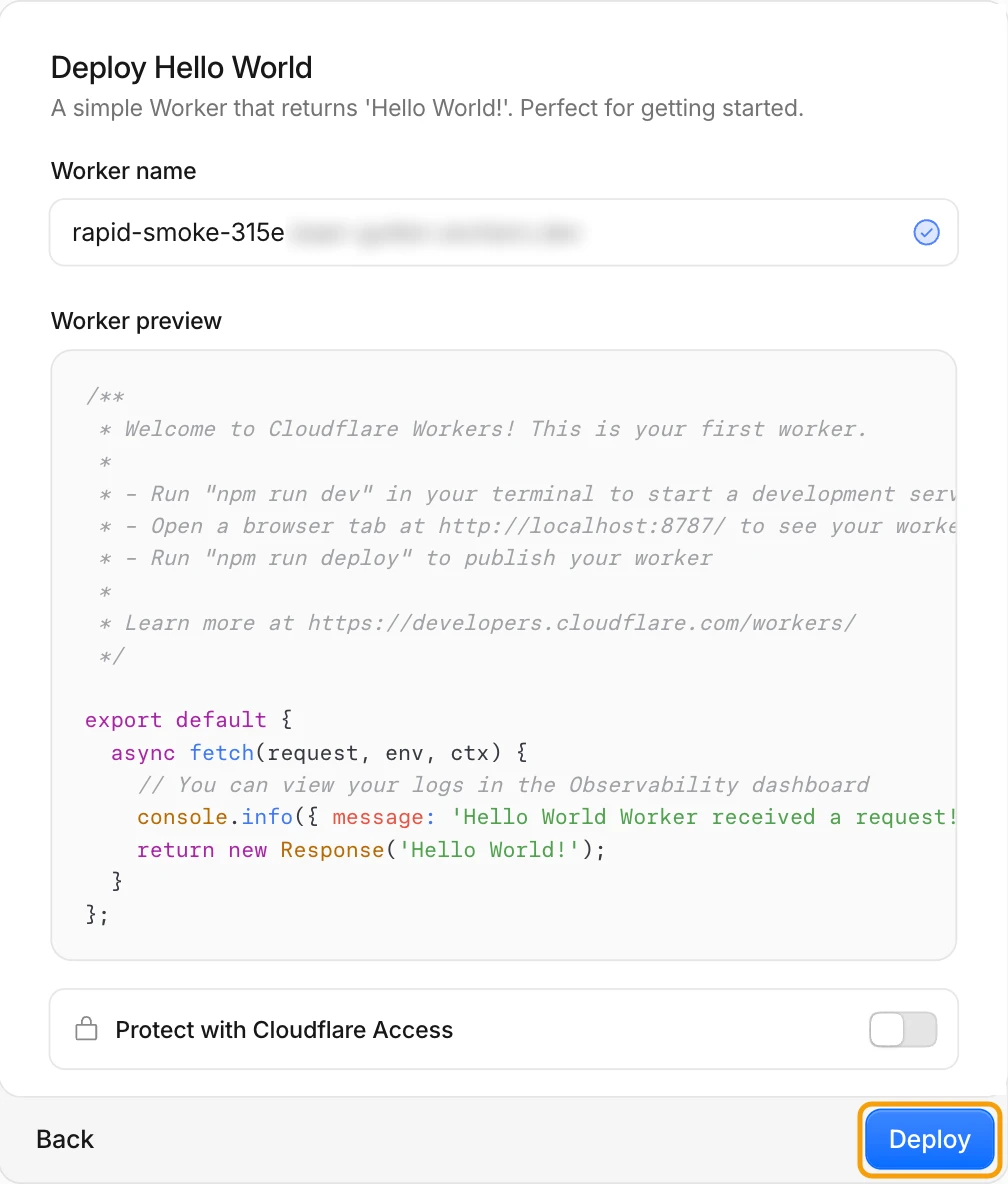
- Name the Worker, for example
brantial-ai-bots, and click Deploy. The Hello World code is only a placeholder; you replace it in the next step.
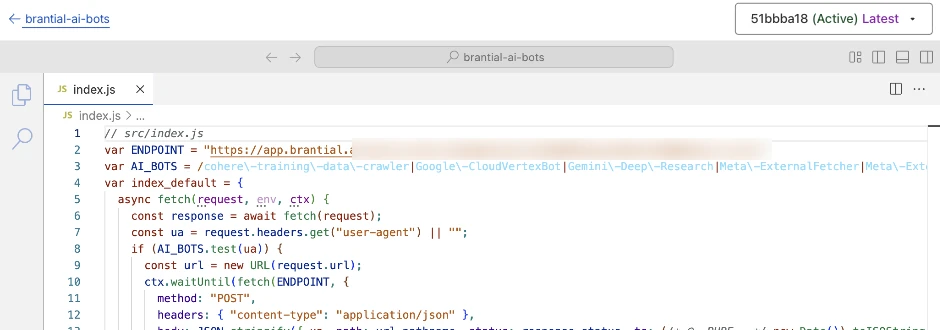
- On the Worker’s page, click Edit code.

- Delete everything in the editor, paste the code you copied from Brantial and click Deploy.

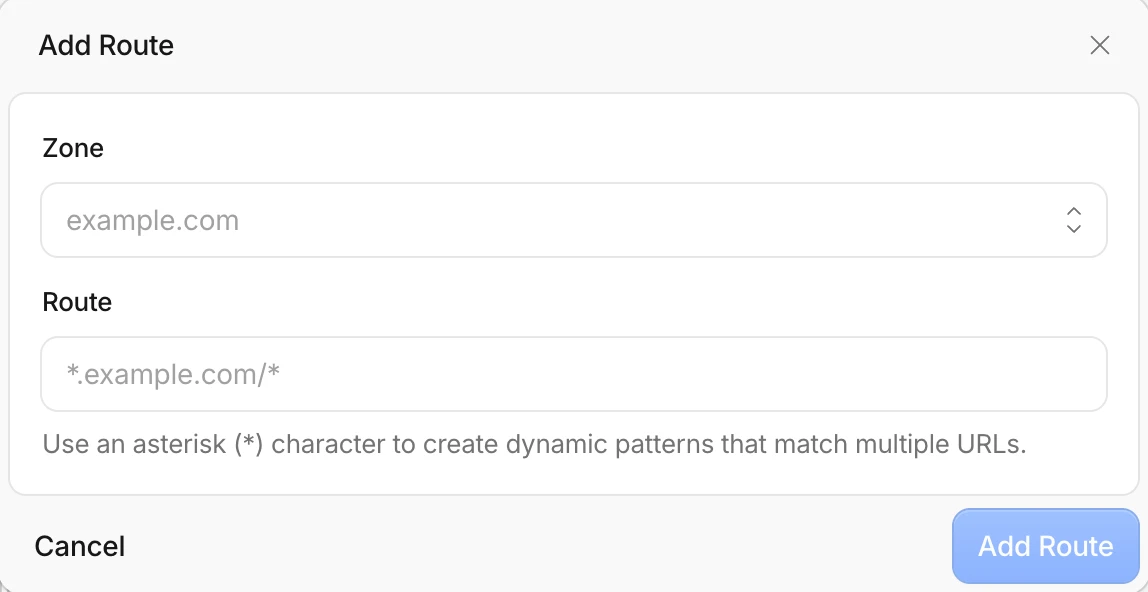
- Go back to the Worker, open the Domains tab and click Add Route.


- Choose your domain as the Zone, enter
example.com/*(with your domain) as the Route and click Add Route. Add a second route forwww.example.com/*if your site also answers on www.
- Back in Brantial, click Test connection.
Things to check
- Your site’s DNS records must be Proxied (the orange cloud in DNS settings). A record set to DNS only does not pass through Cloudflare, so the Worker never sees its requests.
- The Worker runs on every request to your site. Cloudflare’s free Workers plan covers 100,000 requests a day. If your site gets more traffic than that, use the Workers Paid plan so the Worker does not run out.
Site builders without Cloudflare
Wix, Shopify, Webflow, Squarespace, ikas, IdeaSoft and T-Soft do not let you add server code or read server logs. You can still connect them by putting the domain behind Cloudflare:
- Add your domain to a Cloudflare account and change the nameservers at your domain registrar to the ones Cloudflare gives you.
- Make sure the records that point to your site builder are Proxied.
- Follow the Cloudflare steps above.
Check your site builder’s help pages on using Cloudflare in front of it before you switch, and leave enough time for DNS changes to spread.
WordPress
- In Brantial, choose WordPress and click Copy.
- Using FTP or your hosting’s file manager, open
wp-content. Create a folder namedmu-pluginsif it is not there. - Create a file named
brantial-ai-bots.phpinwp-content/mu-plugins, paste the code and save it. Must-use plugins run on their own; there is nothing to activate. - Back in Brantial, click Test connection.
Pages that a caching plugin serves without running WordPress are not counted. If your site is also on Cloudflare, the Cloudflare Worker counts those too.
Next.js on Vercel
- In Brantial, choose Next.js / Vercel and click Copy.
- Save the code as
middleware.tsin the root of your project, next to theapporpagesfolder. If you already have a middleware file, add the Brantial part to your existing function instead. - Deploy, then click Test connection in Brantial.
Middleware runs before the page is built, so the response code is not sent with these visits.
IIS / ASP.NET
- In Brantial, choose IIS / ASP.NET and click Copy.
- Open
Global.asax.csand paste the code inside theGlobalclass. If the class already has anApplication_EndRequestmethod, add the Brantial lines to it instead of adding a second one. - The code needs .NET Framework 4.5 or later and a reference to
System.Net.Http. - Publish the site, then click Test connection in Brantial.
If your site is behind Cloudflare, the Cloudflare Worker does the same job without any change on the server.
Other servers and log tools
Any server, CDN or log tool can send visits to your Brantial address as JSON. Choose Any server in Brantial to see your address.
- Send a
POSTrequest with{"visits": [...]}. Each visit takesua(the user agent),path,statusandts(an ISO 8601 time). - Up to 500 visits fit in one request.
- Brantial keeps only AI crawler requests and ignores everything else, so you can send complete logs without filtering them first.
Test the connection
Click Test connection in Brantial’s setup card. Brantial visits your homepage once as a test crawler called BrantialVerify. Your code reports that visit, and within a few seconds Brantial shows whether it arrived. The test visit is never counted in your statistics.
You can also run the test yourself from a terminal:
curl -A "BrantialVerify/1.0" https://example.com/After that, Last report in Brantial changes to a few seconds ago.
Troubleshooting
The connection test tells you which of these happened.
“Brantial could not open your site”
- Check the website address in your Brantial project settings. It must be the address your site opens on.
- Open the address in a browser to make sure the site is up.
“Your site turned the test crawler away”
Bot protection or a firewall rule stopped the test before your code ran. This is common with Cloudflare’s bot settings and with security plugins.
- Add a rule that allows requests whose user agent contains
BrantialVerify, then test again. - Real AI crawlers may be stopped by the same rule. Brantial’s Site Health shows which ones your site lets in.
“Your site opened, but no report arrived”
The site answered, but your code did not report the visit.
- Cloudflare: check that the route covers the address you tested, with and without www, and that you clicked Deploy after pasting the code. Check that your DNS records are Proxied.
- WordPress: the file must be in
wp-content/mu-pluginsand start with<?php. - Code copied long ago: copy it again from Brantial. Older versions do not answer the test crawler.
The test passes, but no AI crawler visits appear
AI crawlers do not come every day, and some sites see them only a few times a week. Also check in Brantial’s Site Health that your robots.txt does not block the crawlers you want.
You replaced the key
The old key stops working straight away. Copy the code again from Brantial and replace it on your site.
What is sent and what is not
- Only requests from known AI crawlers leave your site. Requests from people are never sent.
- Each report contains the crawler’s user agent, the page path, the response code and the time.
- No cookies, IP addresses, form data or personal data are sent.
- The report goes out after your page has been sent to the crawler, so it does not slow your site down.