

Help
Brantial data in Data Studio, Google Sheets and Power BI
Open the ready-made Data Studio (formerly Looker Studio) report, or pull Brantial data into Google Sheets, Power BI and your own scripts with one key.
Updated
Your Brantial data can go into the reporting tools you already use. A ready-made Data Studio report (formerly Looker Studio) shows your AI visibility, competitors, prompts and cited sites, and updates itself. The same key also feeds Google Sheets, Power BI and your own scripts. Setup takes about five minutes.
Before you start
- The data API is part of the Growth and Enterprise plans. On other plans the card shows See plans instead of a key.
- Verify your email address first; Brantial asks for it before it creates a key.
- One key reads every project you own or belong to, and nothing else. It cannot change anything in Brantial.
Create a key
- In Brantial, go to Settings and open the Account tab. Scroll to Data Studio & data API.
- Click Create a key, then Copy. Brantial shows a key only once, so keep it somewhere safe until you have pasted it.
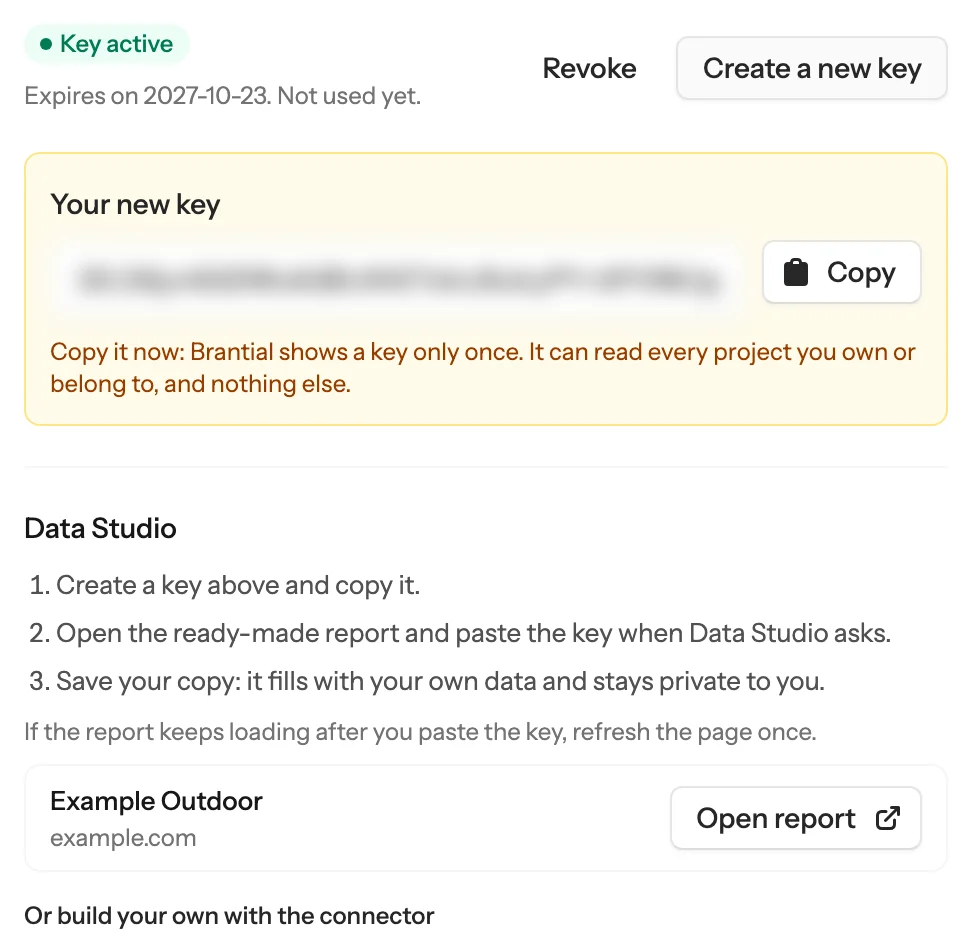
A key works for one year. The card shows when it expires and when it was last used.
Open the ready-made report in Data Studio
- In the same card, click Open report next to the project you want (or Open the ready-made report if you have one project). Data Studio opens a copy of the Brantial report.
- Data Studio asks you to authorize the Brantial connector to see the whole report. Click Authorize and allow access with your Google account.
- Paste your Brantial key into the Key field and click Submit. Never type your Google password there.
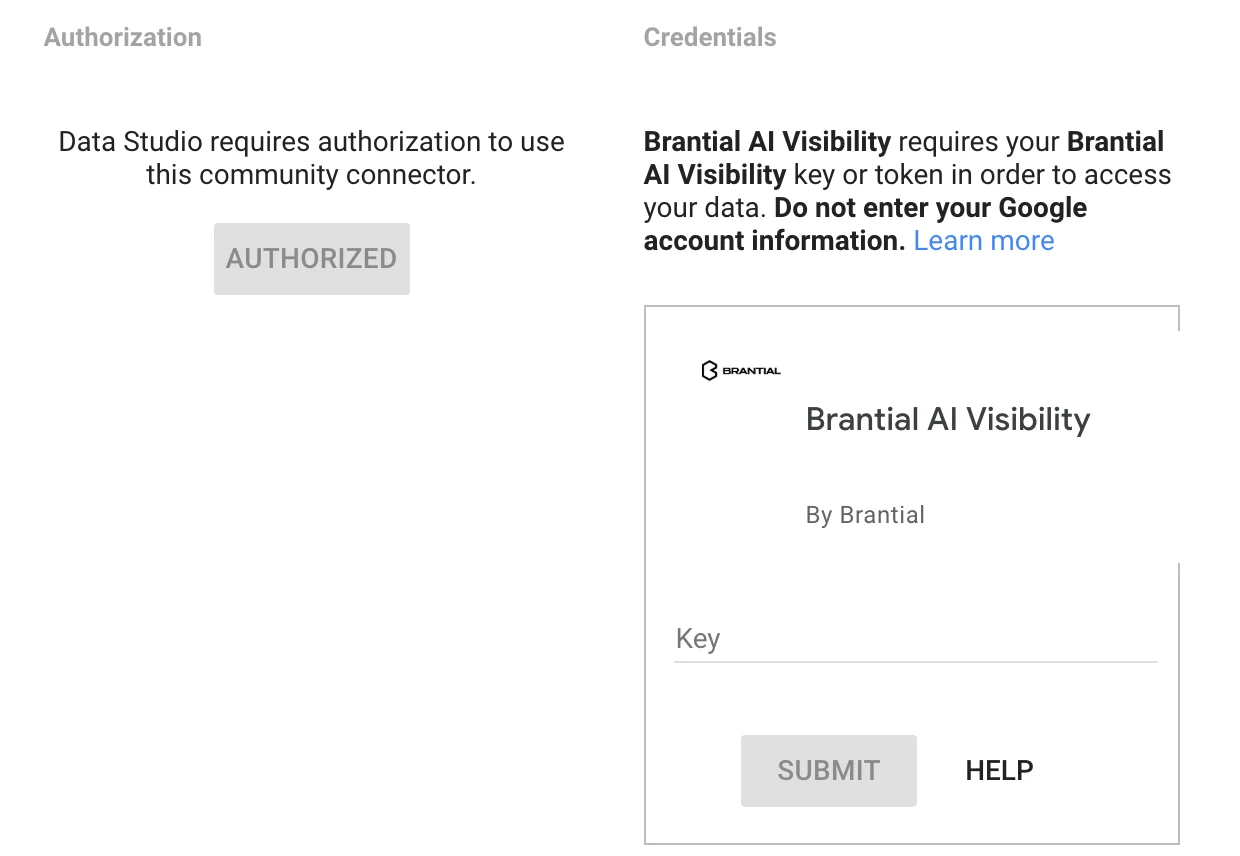
- The report fills with your project’s data. Click Save and share to keep your copy. It stays private to you until you share it.
If the report keeps loading after you paste the key, refresh the page once.
Data Studio shows a note that community connectors are not reviewed by Google. That note appears for every community connector, including Brantial’s.
What the report contains
The report reads three tables. Each row is one day, so the figures add up over any date range you pick.
| Table | What it shows |
|---|---|
| Visibility | For each AI and each brand: answers, mentions, visibility and average position. Your visibility keeps your brand apart. |
| Prompts | For each prompt: answers, mentions, visibility and the sentiment of the answers that named your brand. |
| Sources | The sites AI cites, with your own site marked. |
To build your own report instead, click Or build your own with the connector. Add the connector once for each table you want, and pick the project and the table each time.
Google Sheets and Power BI
The same card builds a ready address for each project and table.
- Under Google Sheets and Power BI, choose the Project and the Table.
- Copy the line you need.
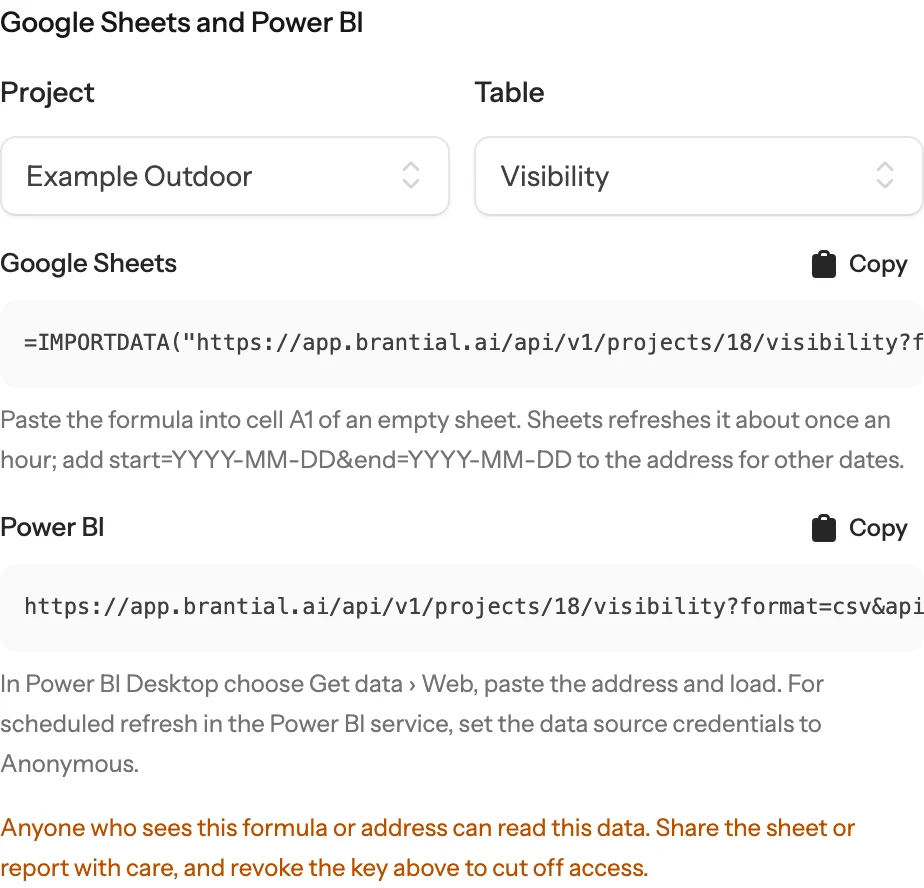
Google Sheets: paste the formula into cell A1 of an empty sheet. Sheets refreshes it about once an hour.
Power BI: in Power BI Desktop choose Get data → Web, paste the address and load it. For scheduled refresh in the Power BI service, set the data source credentials to Anonymous; the key in the address does the signing in.
Both return the last 30 days. For other dates, add start=YYYY-MM-DD&end=YYYY-MM-DD to the address. One request covers up to 400 days.
Keep the formula and the address private. They contain your key, so anyone who sees them can read this data. Share the sheet or report with care, and revoke the key to cut off access.
If you created the key earlier and no longer have it, the address shows YOUR_KEY. Create a new key, or replace YOUR_KEY with the key you saved.
Your own scripts
The data API returns daily counts per AI as JSON, or as CSV with format=csv. Send the key as a Bearer token:
curl -H "Authorization: Bearer YOUR_KEY" \
"https://app.brantial.ai/api/v1/projects"| Request | Returns |
|---|---|
GET /api/v1/projects | The projects your key can read, with their ids |
GET /api/v1/projects/{id}/visibility | The Visibility table |
GET /api/v1/projects/{id}/prompts | The Prompts table |
GET /api/v1/projects/{id}/sources | The Sources table |
Add start and end (YYYY-MM-DD) for a date range, or get the last 30 days. Tools that cannot send headers may pass the key as api_key in the address of a GET request.
Replace or revoke a key
- Create a new key replaces the current one. Reports, sheets and scripts that use the old key stop updating until you give them the new one.
- Revoke turns the key off at once.
- To give an existing Data Studio copy the new key, edit its Brantial data sources and enter the new key when Data Studio asks, or open the ready-made report again from Brantial.
Troubleshooting
The report keeps loading after I paste the key
Refresh the page once. The connector has your key by then, and the report fills.
Charts say “This action is unauthorized”
The key in use cannot read this project. This happens when someone opens a report copy that was set up with another person’s key. Open the ready-made report from your own Brantial account and use your own key.
Charts stopped updating
The key was revoked or replaced, or it expired after a year. Create a new key and give it to the report, as described under Replace or revoke a key.
The card shows “See plans” instead of a key
Your plan does not include the data API. It is part of the Growth and Enterprise plans.
Sheets shows an error instead of data
- Check that the key in the formula is current; a revoked or replaced key stops working.
- Check that the formula starts with
=IMPORTDATA(and that the address is in quotes. - Sheets fetches the address again about once an hour, so a fix can take a while to show.
Power BI refuses to refresh in the service
Set the data source credentials to Anonymous in the dataset settings. The key in the address is the sign-in.
The API answers 401 or 403
- 401: the key is missing, wrong, expired or revoked.
- 403 with a message about plans: the project’s plan does not include the data API.
- 403 with another message: the account no longer has access to the project’s analysis, for example after a subscription ended.
What the key can see
- Daily counts for the projects you own or belong to: visibility, mentions, positions, prompts, sentiment and cited sites.
- It cannot read other customers’ data, your account details or the AI answers themselves.
- It cannot change anything in Brantial.