

Help
Bring your product catalogue into Brantial
Bring your products into Brantial's Shopping view from a Shopify store address, a Google Merchant or custom XML feed, or a CSV file, and keep them up to date.
Updated
Brantial’s Shopping view shows how your products appear in AI shopping answers: which products ChatGPT and other AIs show, at what price, and where competitors win. To do that, it needs your product catalogue. You can bring it in from a Shopify store’s address, from a product feed (XML) or from a spreadsheet (CSV). Nothing is changed in your store.
Before you start
- Shopping must be part of your plan. Your plan also sets how many products you can track at once.
- The project owner or an editor can connect the catalogue.
- Have one of these ready: your Shopify store’s address, the address of your Google Merchant product feed, an XML file, or a CSV file.
Which source fits your store?
| Your store | Use | Refreshes automatically |
|---|---|---|
| Shopify | Shopify, with the store’s address | Yes |
| A store with a Google Merchant feed (WooCommerce, Ticimax, ikas, T-Soft and others) | XML → Google Merchant, with the feed’s address | Yes |
| A feed with other field names | XML → Custom XML | Yes, when added by address |
| Any store, or a product list in a spreadsheet | CSV, with Brantial’s template | No, upload a new file to update |
If your store offers a Google Merchant feed, prefer its address over a file: Brantial can then refresh the catalogue on its own.
Connect the catalogue
- In Brantial, open AI Shopping → Products and click Connect catalogue.
- Choose the Catalogue source and fill in the fields, as described below.
- Click Find products. Brantial reads the catalogue and shows a preview: how many products it found, and how many have a price, image, stock and other fields.
- Click Import entire catalogue. Products already imported are kept.
- Choose the products to measure and click Check selected. Measuring starts only for the products you choose.
Shopify
Enter your store’s address, for example example.com or example.myshopify.com. Brantial reads the store’s public catalogue: the same products and prices any visitor can see. It needs no app, password or permission, and changes nothing in the store.
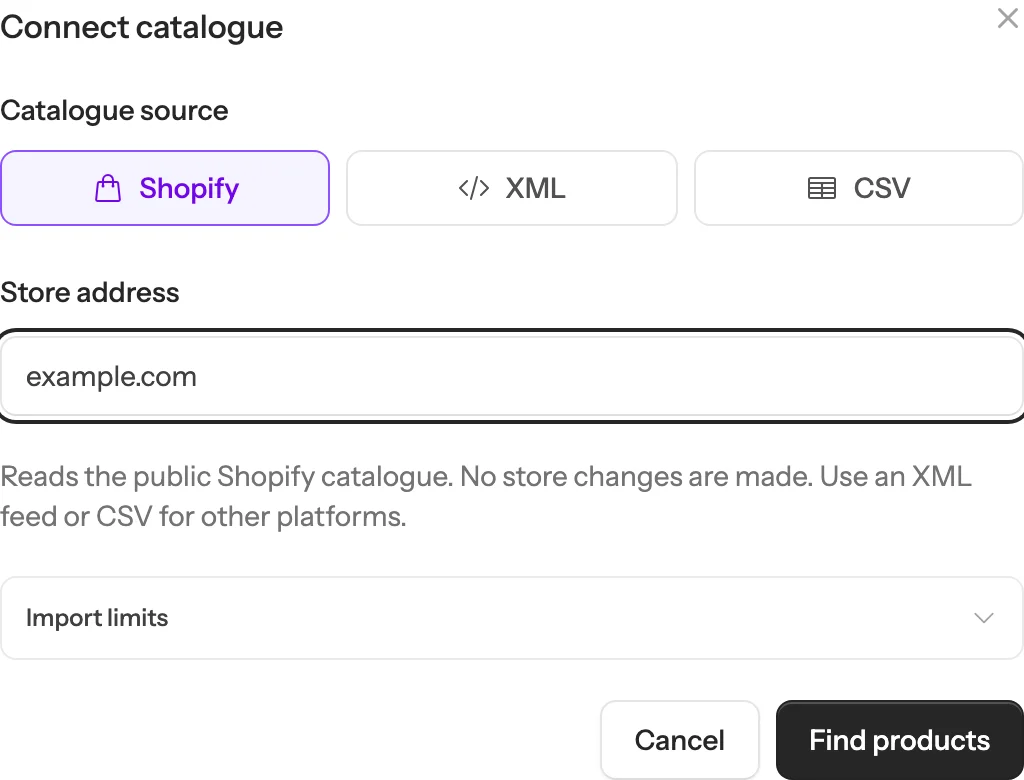
A store that is password-protected, for example one still being built, has no public catalogue. Use an XML feed or CSV for it.
XML product feed
- Choose XML, then Google Merchant for a standard feed (RSS or Atom), or Custom XML if your feed uses other field names.
- Enter your store’s address.
- Choose Feed URL and paste the feed’s address, or Upload XML file.
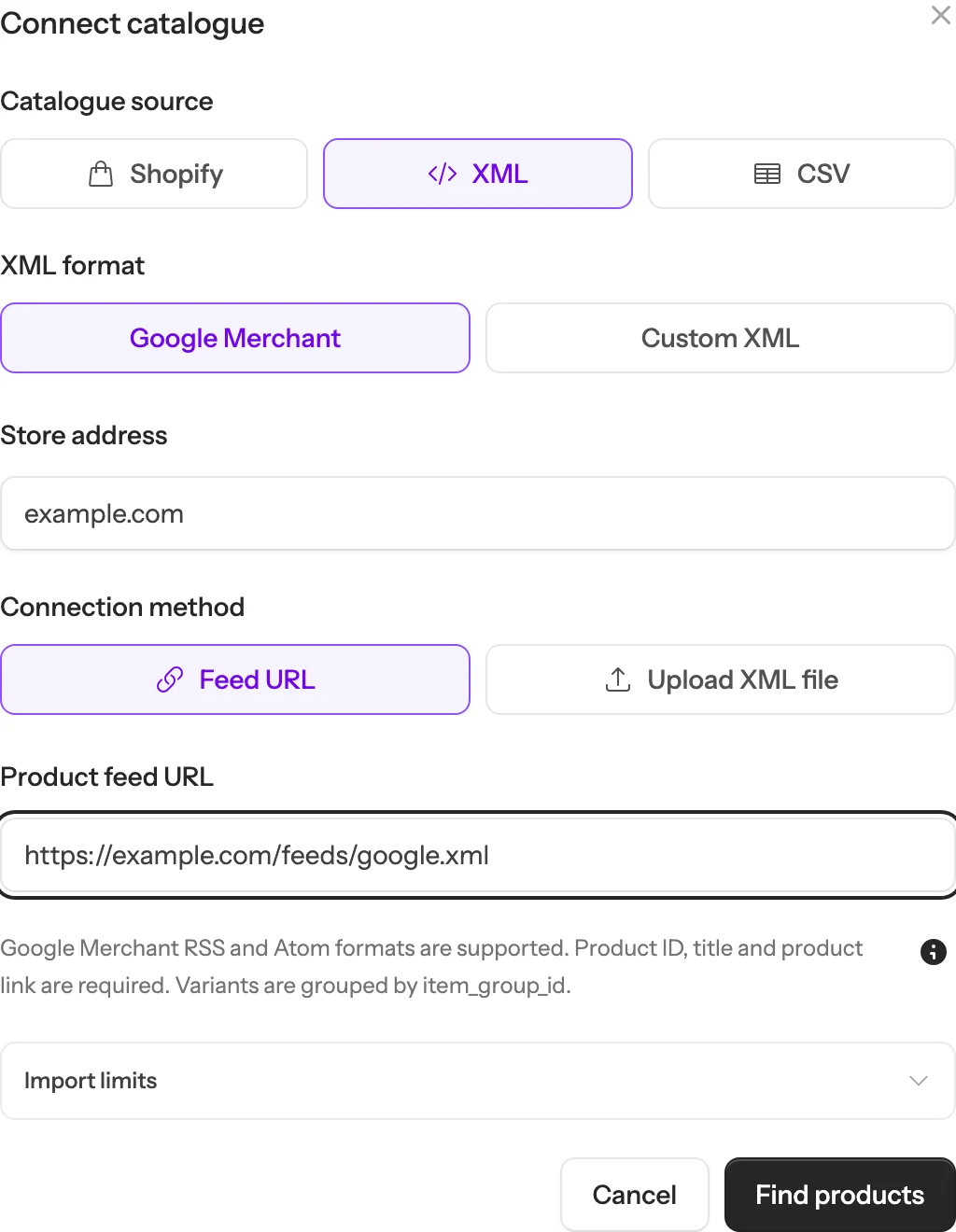
Each product needs an ID, a title and a product link. Variants of one product, such as sizes or colours, are grouped by item_group_id. With Custom XML, Brantial first shows the fields in your file; choose which ones hold the product ID, title and link, and the preview follows.
The feed address must start with https:// and must not contain a username or password.
CSV file
- Choose CSV and click Download CSV template.
- Fill in your products:
id,titleandlinkare required; add price, image, stock and the other columns you have. - Save the file as UTF-8, comma separated, and upload it.
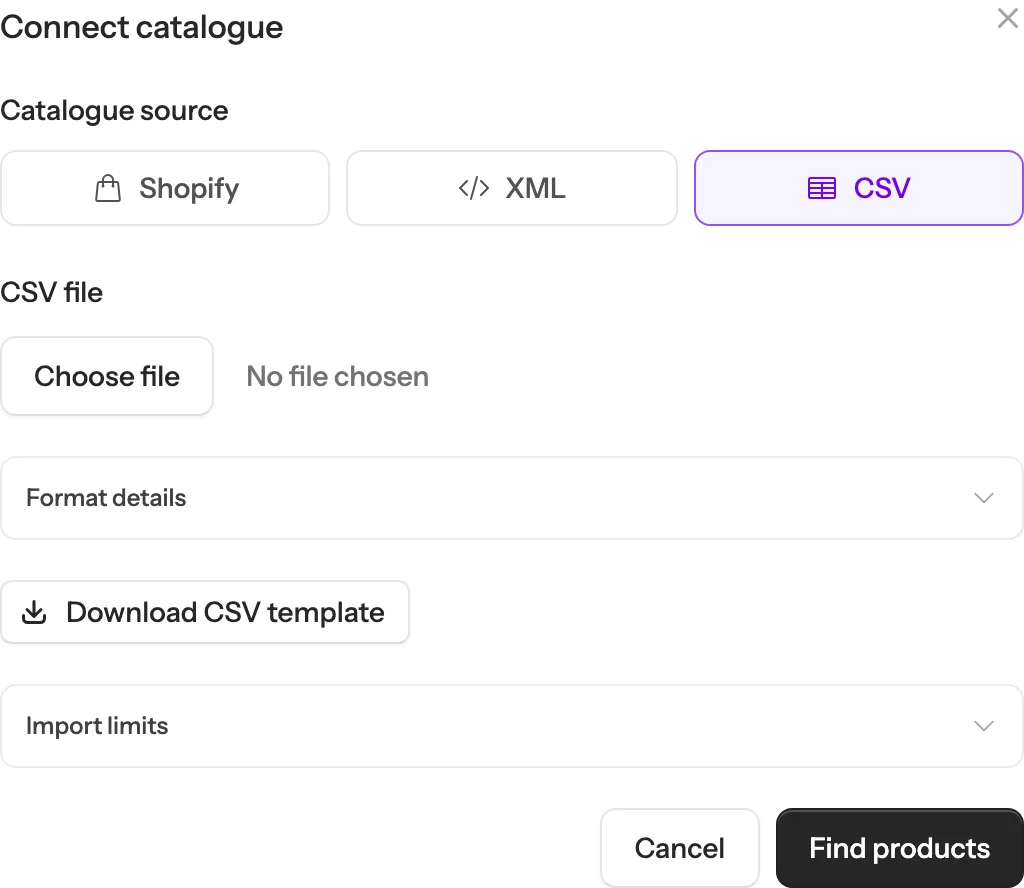
Group the variants of one product with item_group_id, as in a Google Merchant feed.
Keep the catalogue up to date
After an import from Shopify or from a feed address, turn on Automatic refresh and choose Daily or Weekly. Brantial reads the catalogue again on that schedule. If many rows are invalid or a lot of data suddenly disappears, the change waits for your review instead of being applied, and your existing products stay as they are.
A catalogue that came from a file cannot refresh itself. Upload the latest file through Connect catalogue when your products change.
Limits
- Up to 100,000 source rows per import.
- Up to 2,048 variants per product.
- XML and CSV files up to 10 MB.
Larger catalogues need a capacity review; write to us.
Troubleshooting
“Catalogue could not be read. Check the address or upload CSV.”
- Check the store address, for example
example.com. - The store may be password-protected or block automated visits. Use an XML feed or CSV instead.
“Enter a valid store domain.”
Enter the store’s address, such as example.com. Check it for typos and spaces; an address with a username, password or port number is not accepted.
“This is not a supported Google Merchant RSS/Atom product feed, or the XML is malformed.”
The file is not a Google Merchant feed or its XML is broken. Choose Custom XML if your feed uses other field names, or use the CSV template.
“The feed could not be downloaded or exceeds 10 MB.”
Open the feed address in a browser to check it works. If it does, the feed is probably over 10 MB; split it, or upload a smaller file.
“Enter an HTTPS feed URL without an embedded username or password.”
Use an https:// address. If your feed needs a password, download it and upload it as a file instead.
“This XML structure is too complex for direct mapping.”
Your custom XML nests products in a way Brantial cannot map. Use a Google Merchant feed or the CSV template.
“CSV requires unique column names including id, title and link.”
Add the id, title and link columns, and make sure no column name appears twice. Starting from the template avoids this.
“Skipped source records”
Some rows were missing a required field or had an invalid link. The rest were imported. Correct the listed rows and upload again.
“Shopping measurement is not included in your plan.”
Your plan does not include Shopping. Upgrade to start measuring products.
“Your plan allows … tracked products”
You have reached your plan’s limit. Stop tracking a product, or upgrade, to add another.
“This catalogue change needs review.”
An automatic refresh found many invalid rows or a large drop in data. Your existing products are kept. Open the preview, check it and import it if it is right.