

Help
Send AI Page Optimizer rewrites to WordPress
Connect WordPress with an application password and send AI Page Optimizer rewrites to your site as drafts. Nothing goes live until you publish it.
Updated
When AI Page Optimizer rewrites one of your pages, Brantial can send the new version to your WordPress site as a draft. Nothing goes live: you open the draft, check it and decide what to publish. The connection uses a WordPress application password and takes about five minutes.
Before you start
- Only the project owner can connect WordPress.
- Your site must be on WordPress 5.6 or later and open on HTTPS. Application passwords are built into WordPress from 5.6, and WordPress only offers them on HTTPS sites.
- Use a WordPress user who can edit pages, such as an Editor or Administrator. Author and Contributor accounts cannot create page drafts.
Create an application password in WordPress
An application password is a separate password just for Brantial. It cannot be used to sign in to your WordPress dashboard, and you can revoke it at any time without changing your own password.
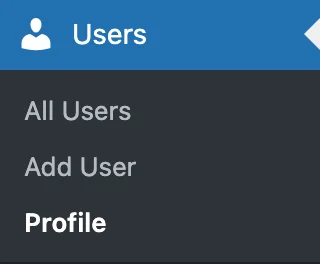
- Sign in to WordPress and open Users → Profile.
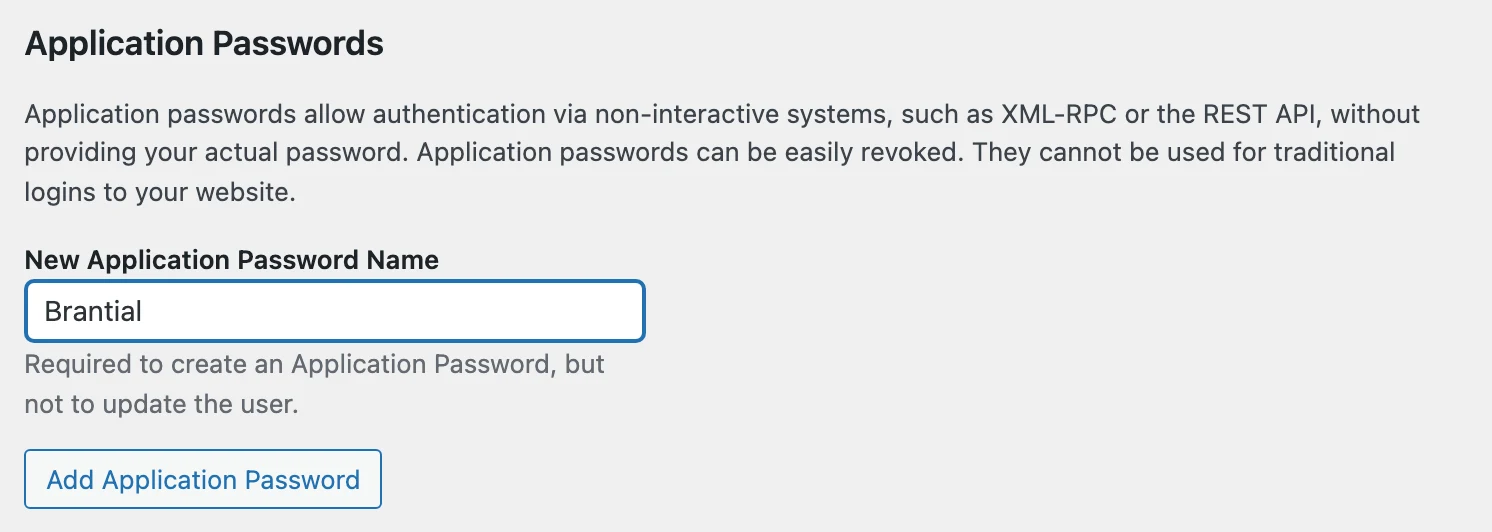
- Scroll to Application Passwords, type
Brantialin New Application Password Name and click Add Application Password.
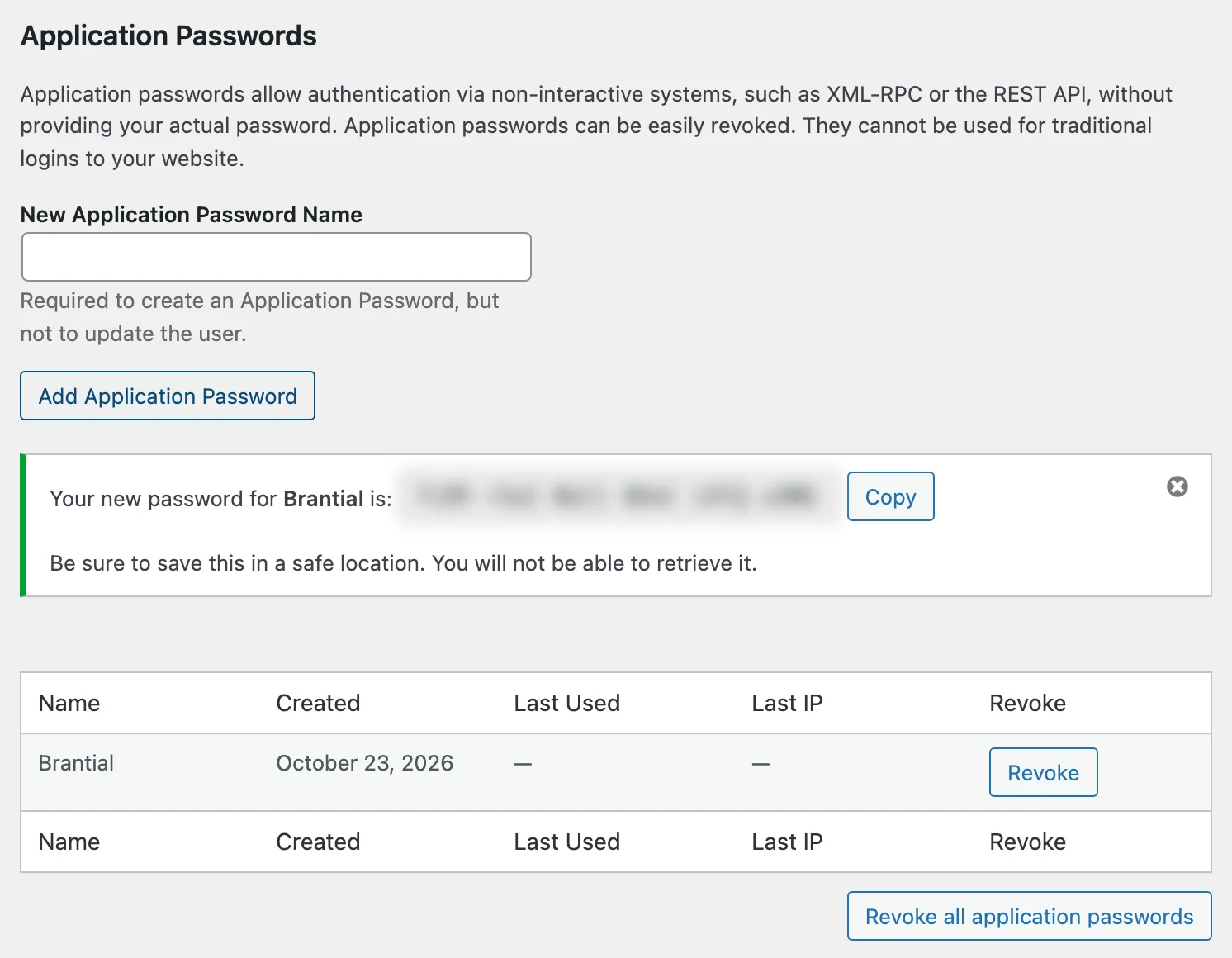
- WordPress shows the new password once. Click Copy. You will paste it into Brantial in the next step.
Connect it in Brantial
- In Brantial, open your project and go to Settings. Scroll to WordPress.
- Check the Site address. It is filled in from your project; change it if WordPress runs somewhere else, for example
example.com/blog. - Enter your WordPress username (the one you sign in with) and paste the Application password.
- Click Connect WordPress. Brantial checks the password with WordPress before it saves anything.
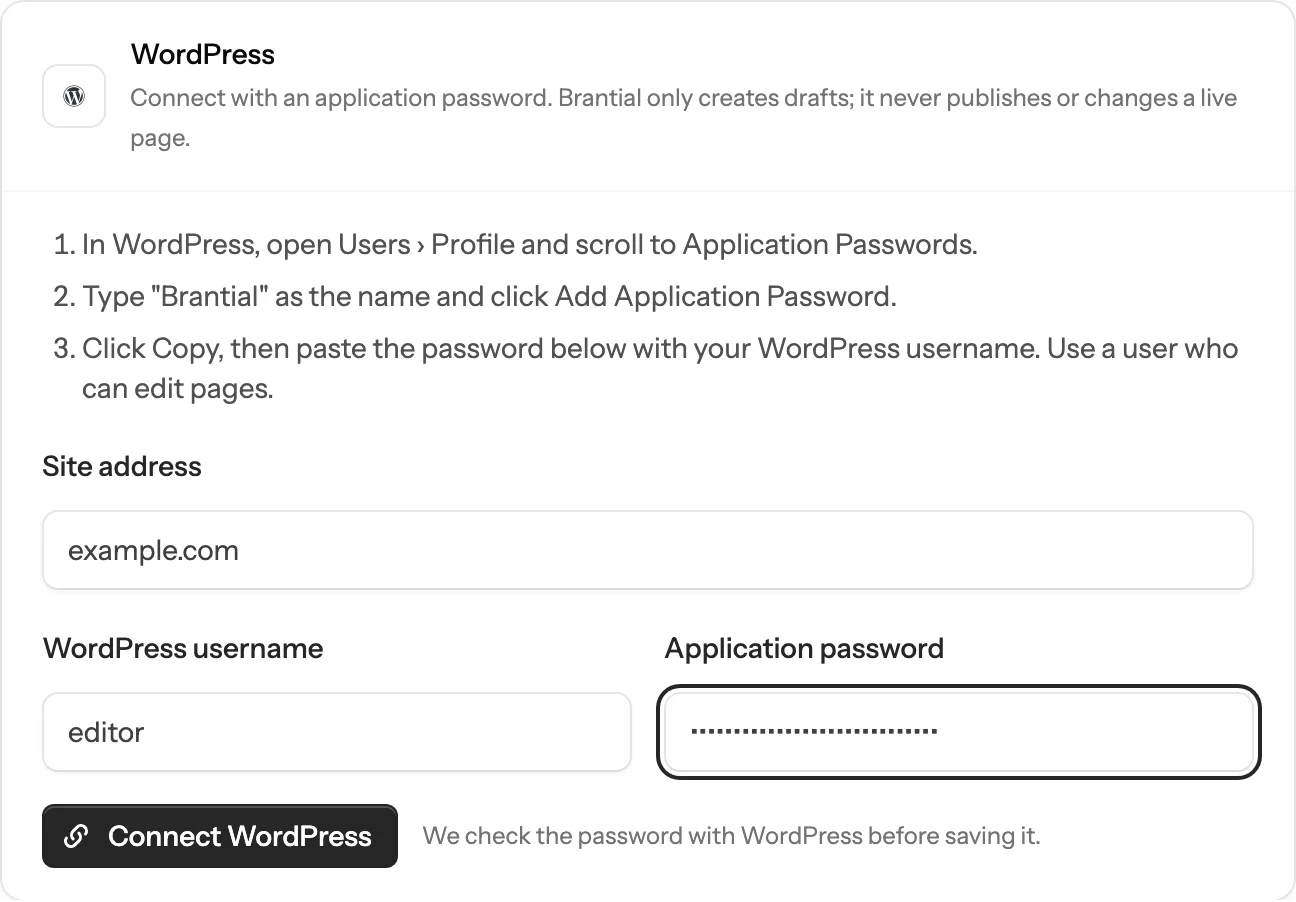
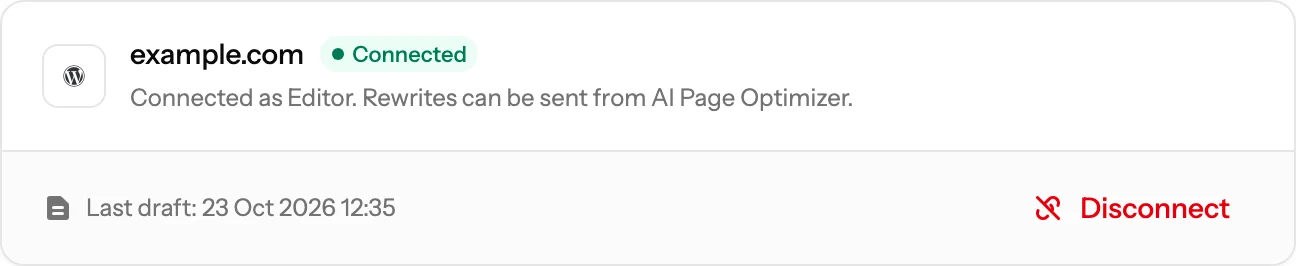
When it works, the card shows your site with Connected and the WordPress user it connected as.
Send a rewrite to WordPress
- Open AI Page Optimizer and open a page whose rewrite is finished.
- Click Send to WordPress. Brantial creates a draft and tells you when it is there.
- Click Open draft to open it in the WordPress editor.
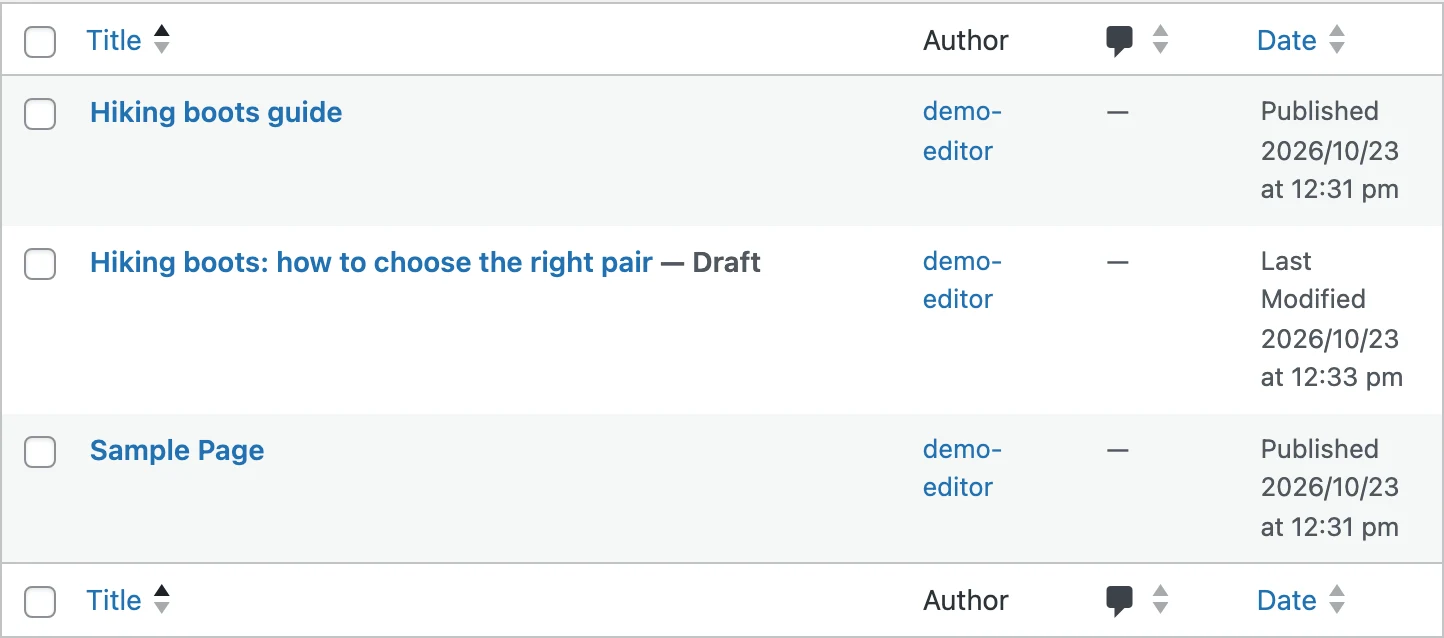
How the draft is made:
- The live page is never changed. Brantial finds the original page or post by its address and creates a new draft of the same type, under the same parent page.
- The first heading becomes the draft’s title. Headings, paragraphs, lists, tables, links and bold text come across as they are. In the block editor the content opens as one Classic block; choose Convert to blocks if you want to edit it block by block.
- Sending again updates the same draft, as long as it is still a draft. Click Update WordPress draft. Once you publish or delete the draft, the next send creates a new one.
- If Brantial cannot find the original, it creates the draft as a new page and says so. This is normal for the homepage, WooCommerce products and custom post types.
Publish the changes
WordPress has no button that moves a draft’s content into an existing page, so pick the way that suits your site:
- Copy into the original page. Open the draft, select all the content, copy it into the original page’s editor and click Update. The page keeps its address, SEO settings and comments. Then delete the draft.
- Page builders such as Elementor, Divi or WPBakery keep the layout in their own format. Use the draft as the text to paste into the builder’s sections.
- A rewrite-and-republish plugin, such as Yoast Duplicate Post, lets you edit a copy of a live page and replace it in one step. You can paste the draft’s content into that copy.
Troubleshooting
Brantial shows the reason under the field it relates to. Find the message below.
“WordPress did not accept this username and application password”
- Use the username you sign in with. It is shown at the top of your Profile page and cannot be changed there.
- Paste the application password, not your normal WordPress password. Spaces in it are fine.
- A security plugin may be blocking application passwords. Wordfence, Solid Security (iThemes) and All In One WP Security have settings that turn them off. Allow application passwords, or allow them for this user.
- Your server may be removing the login header. On some Apache hosts, WordPress never receives it. Ask your host to pass the
Authorizationheader to PHP, or add this line to the top of your.htaccessfile:
SetEnvIf Authorization "(.*)" HTTP_AUTHORIZATION=$1There is no Application Passwords section in my profile
WordPress hides it when the site is not on HTTPS, and some security plugins and hosts turn it off. Check that your site opens on https://, then look for an application passwords setting in your security plugin.
“This WordPress user cannot edit pages or posts”
The user is an Author, Contributor or Subscriber. Create the application password on an Editor or Administrator account instead.
“No WordPress REST API answered at this address”
- Check the address. If WordPress is in a folder, include it, for example
example.com/blog. - A plugin may have turned the REST API off. Brantial needs it; if the plugin has the option, keep it on for signed-in users.
“This address redirects to …”
Your site opens on a different address, for example with www. Enter the address Brantial shows.
“Use a public HTTPS address”
Brantial only connects to public sites on HTTPS. Local, staging-only and plain HTTP addresses are refused.
“The site did not answer in time”
The site was slow or a firewall stopped the request. Try again in a few minutes. If it keeps happening, ask your host whether requests from other servers to /wp-json/ are blocked.
“WordPress no longer accepts the saved password”
The password was revoked, or the user was removed or lost its role. Create a new application password and connect again.
“The last draft could not be sent”
Check the message on the optimizer page. Most often the password was revoked; create a new one and connect again.
Disconnect
Click Disconnect on the WordPress card. Brantial stops sending drafts, and drafts already sent stay in WordPress. To remove the password itself, open Users → Profile in WordPress and click Revoke next to Brantial.
What Brantial can do with the password
- Read your user name and role to check the connection.
- Look up the original page or post by its address.
- Create drafts and update the drafts it created.
- It never publishes, never changes a live page and never deletes anything.